Joining a new city can be confusing; each server is slightly different, with new keybinds to learn, new systems, and locations that have been rearranged. To help you get started, whether you're new to RP or a seasoned veteran of FiveM and GTA RP, we've created this guide.
¶ GETTING STARTED
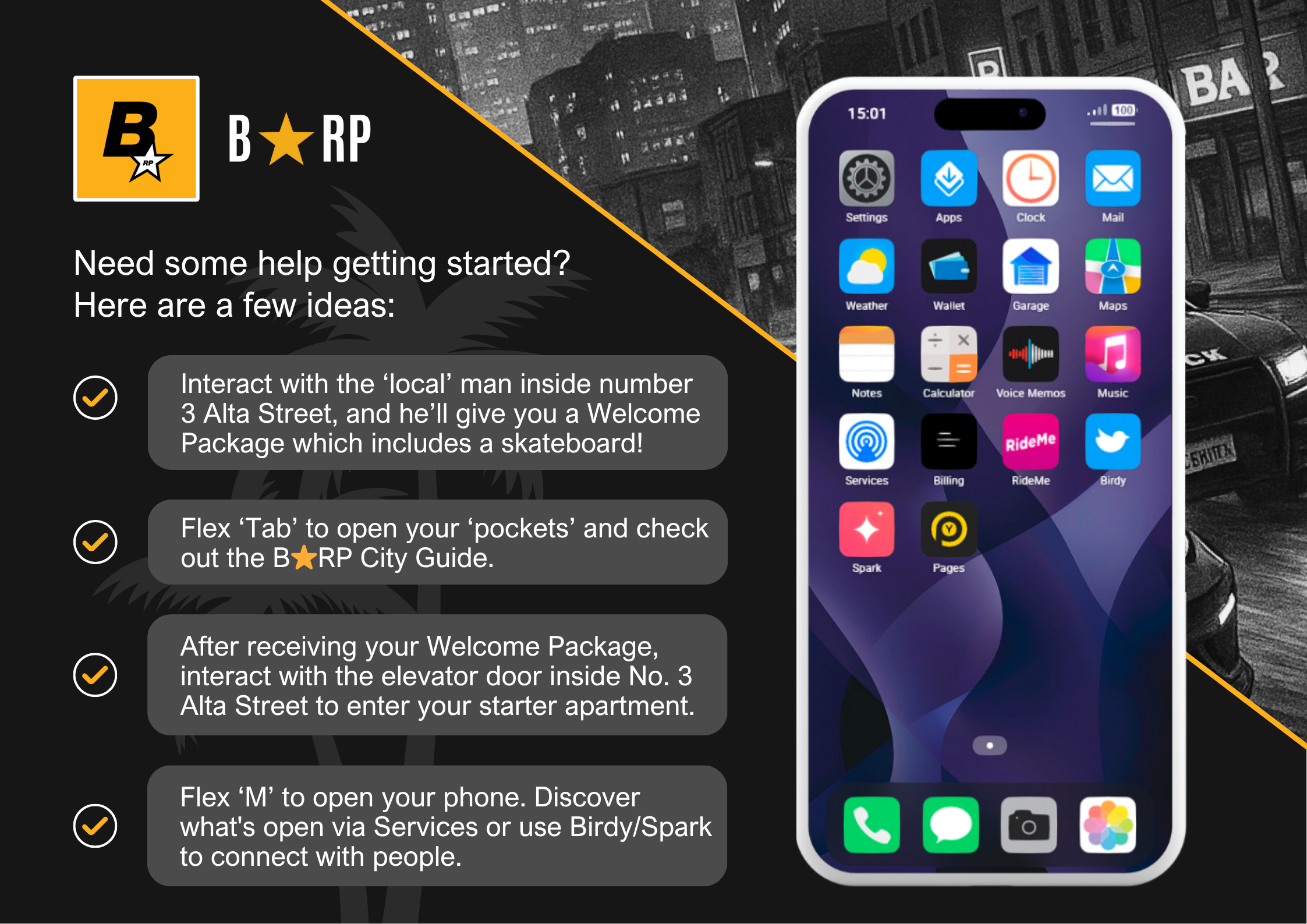
¶ 1. Welcome Package - Skateboard & Apartment
All new characters can claim a FREE STARTER APARTMENT & SKATEBOARD at Number 4 Alta Street (Postal ). We recommend taking advantage of this opportunity; it costs nothing and provides you with transportation, a home base, and some storage space for your valuables. When you make some money, you can buy a vehicle from one of the showrooms, or a larger apartment, garage, warehouse, or house from Dynasty 8. For those who don't want to board around the city, there's a garage behind the Alta apartments with bike rentals.
 |
CLAIMING YOUR WELCOME PACK - To claim your free Welcome Pack - Talk to the ‘local’ gentleman wearing the dark red jacket. He can be found at number 4 Alta Street. To the left of the door as you enter the building. Walk up to him, and when the interact prompt appears, hold your ‘E’ key. If no interaction prompt appears, hit ‘Alt’ on your keyboard to toggle visibility. 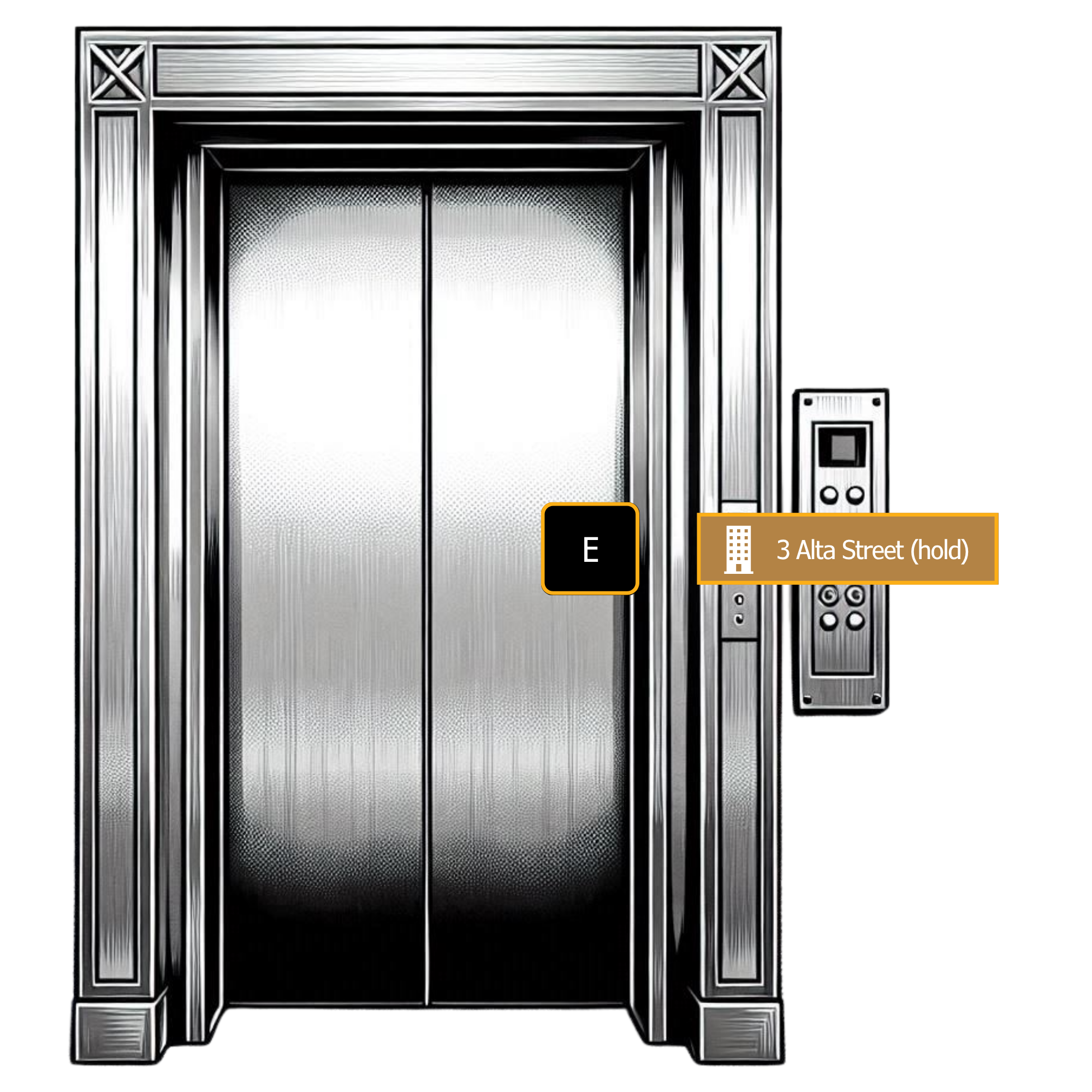
|
¶ 2. The ‘Welcome Book’ - B⭐RP City Guide
The Welcome Book is included in your Welcome Package and will be added to your inventory immediately upon claiming it. To open your inventory, press your ‘Tab' key. Locate the book and either right-click it and select ‘Use’ or drag it to the ‘USE’ option at the bottom of your inventory.
Before you discard it in the trash or drop it on the floor (like most people), pause for a moment… it does contain some helpful information!
¶ 3. Earn Some Money
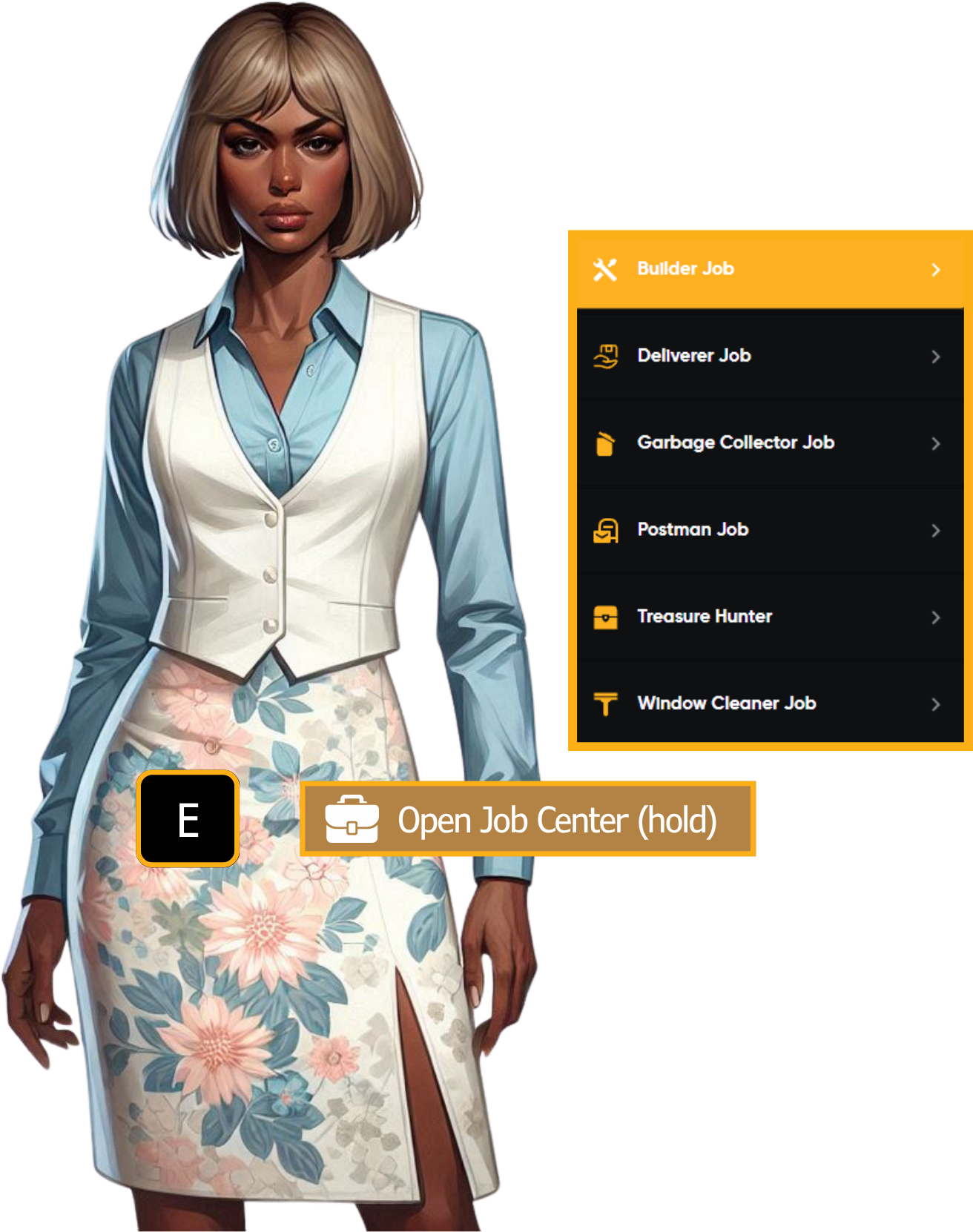
| Every new character gets $5000 starter cash, but this won't go very far when you need to eat, drink, repair, etc. At some point, we all need a job. At Postal 738 (marked by a briefcase on the map), inside number 4 Alta Street, you'll find another local lady who runs the city job center. Walk up to her, and when the interact prompt appears, hold your ‘E’ key. If no interaction prompt appears, hit ‘Alt’ on your keyboard to toggle visibility. All the current city jobs are listed here. Select the one you'd like to try, and a GPS marker will be added to your map to indicate the start location for the job. Player-owned businesses advertise job vacancies using Birdy (in city) and via the B⭐Discord. Discord vacancies can be found in the 📚⋮ic⋆business⋆resources channel. Or… you can always try fishing, mining, scavenging, or metal detecting as alternative ways of making some cash. |
 |
¶ 4. Needs & Skills/Status
| SKILLS - Press the ‘K’ key on your keyboard to see your current skill levels. If your character's brand new, they will all be at 1.0%. As you use each of those skills, they will increase. Running and exercising will improve your Running and Lifting skills. Driving your car will increase your Driving skills. |
|
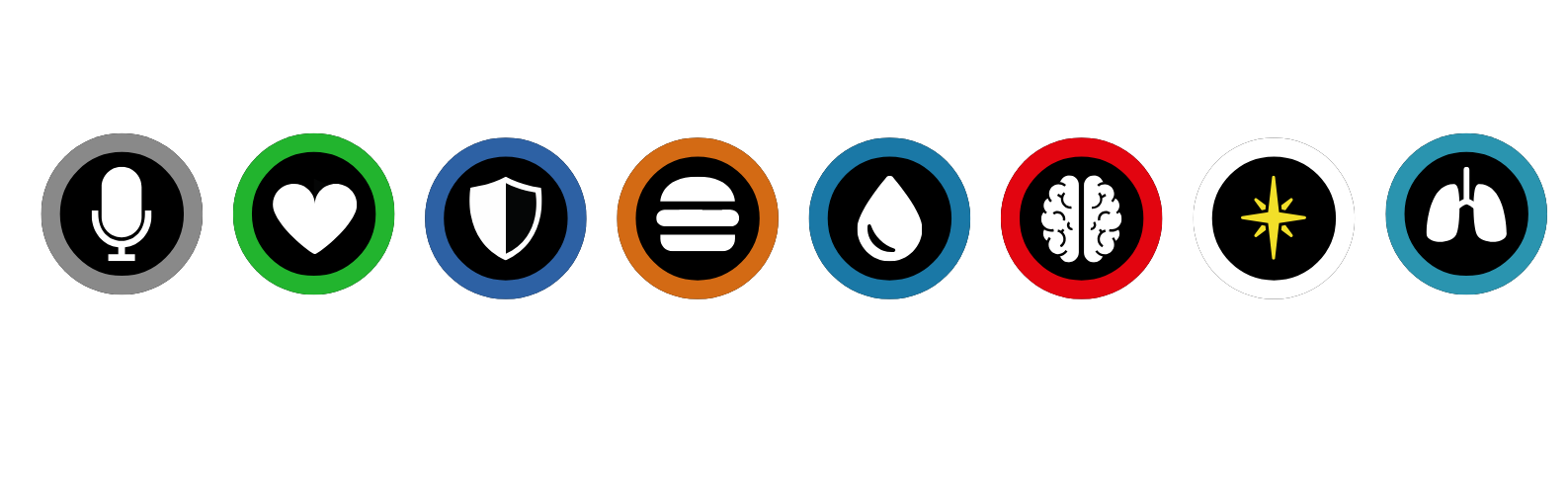
NEEDS & STATUS - With needs and status effects, the amount of color circling the icon matters. For example, in the images below showing stress levels, when the left-hand image has a red area surrounding the black that is ¼ filled, stress levels are lower than in the right-hand image, where the bar is full and stress is at maximum. For most status indicators (health, armor, drink, food, inspiration, etc.), higher values are generally better. But in the case of stress, higher is not better. 
|
The Services App - This is a great way to find open restaurants (for food and drink), mechanic shops (for car repairs), cannabis shops (for stress relief), or other useful businesses and social hubs, such as clubs and bars. Open your phone and check the app. 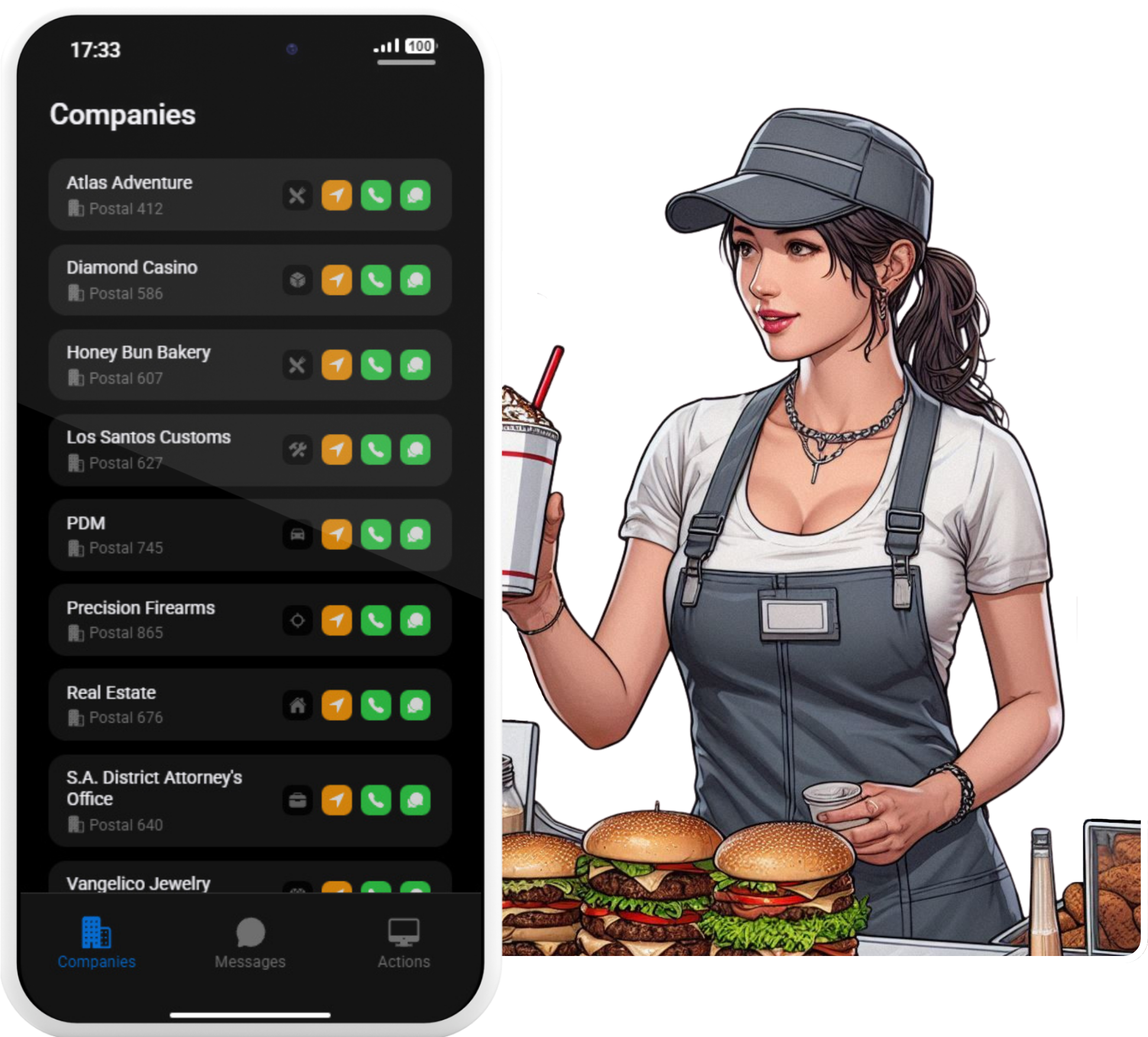 Birdy - Businesses often advertise through Birdy, and sometimes they include pictures of their menu. You can also use Birdy to ask if anyone can open a food business or other necessary business, if you can't see them listed in the Services App. |
¶ 5. Your Inventory
To open your inventory (pockets), press your ‘Tab’ key. Your inventory is divided into three sections; the two main sections are shown above. On the left are your equipment slots; each slot has a purpose (see below). The central window is your main inventory, your hotbar slots (1-5), and space for other items.
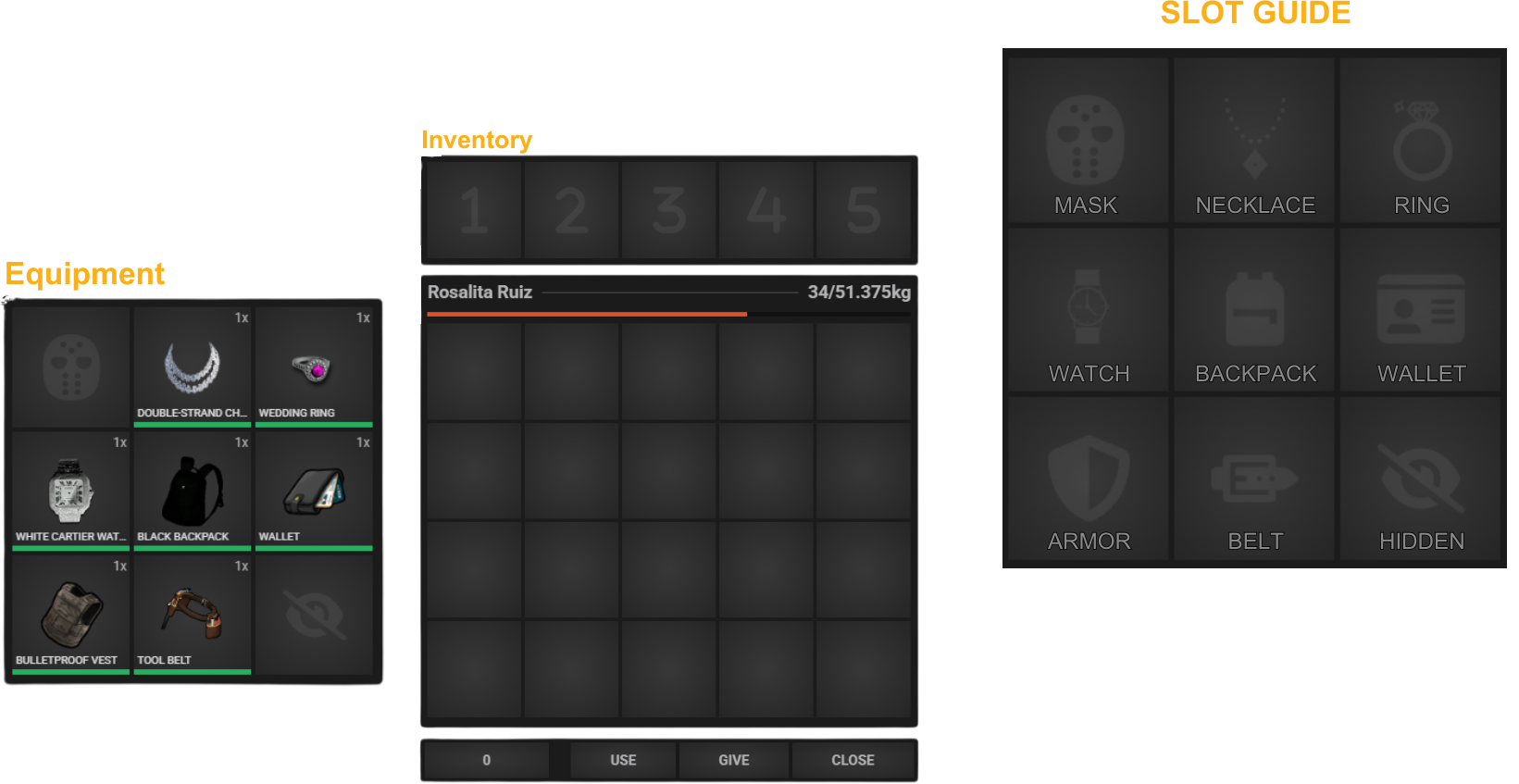
WEIGHT & SLOTS - How much you can carry is determined by the number of available slots and the weight of the items in your inventory. Different items weigh different amounts. In the above image, Rosalita is sitting at 34/51.375kg.
YOUR HOTBAR - Drag items from your inventory to your hotbar. These items are keybound to the 1-5 keys on your keyboard. For example, if you place a stack of drinks in slot 1, each time you hit the ‘1’ key on your keyboard, you will drink one of the drinks.
EQUIPING ITEMS - Drag them from the main inventory to the appropriate spot in the ‘Equipment Slots’ window.
USING ITEMS - Inventory items (that are not bound to the 1-5 hotkeys) can be used in two ways: right-click them and select ‘Use’ from the drop-down, or drag them to the ‘USE’ option at the bottom of the inventory window.
GIVING ITEMS - Either right-click them and select ‘Use’ from the drop-down, or drag them to the ‘USE’ option at the bottom of the inventory window.
DROPPING ITEMS - When you open your inventory, a secondary window appears to the right of the Inventory Hotbar and main inventory. Drag them to one of those slots, and a bag will appear on the floor. If you accidentally drop something, stand next to the bag on the floor (the bag will appear when the item is dropped. Press the ‘Tab’ key, and the drop inventory with the item dropped should open; you can then drag it back into your inventory.
¶ SCHEDULE A TOUR
After verifying your account, the Helper or Moderator who handled your ticket should have replied in your Verification Ticket and included a link to the 🚎⋮schedule⋆a⋆tour channel, inviting you to take an in-character tour as part of your introduction to B⭐and what the city has to offer. If they didn't, they should be fired; however, you shouldn't miss out on an excellent opportunity to learn more about what we have to offer just because we failed.
To schedule a tour, head to the 🚎⋮schedule⋆a⋆tour channel, @Tour Guide, and ask if anyone is available for a tour. It may take a little while to receive a response; all our Tour Guides are just regular roleplayers who enjoy dedicating some of their time to welcoming new players and showing them around. Check back occasionally, and they should @ you when they respond. Players who venture forth on one of our tours receive a special gift upon its completion.
¶ USEFUL INFORMATION
¶ 1. B⭐ Keybinds
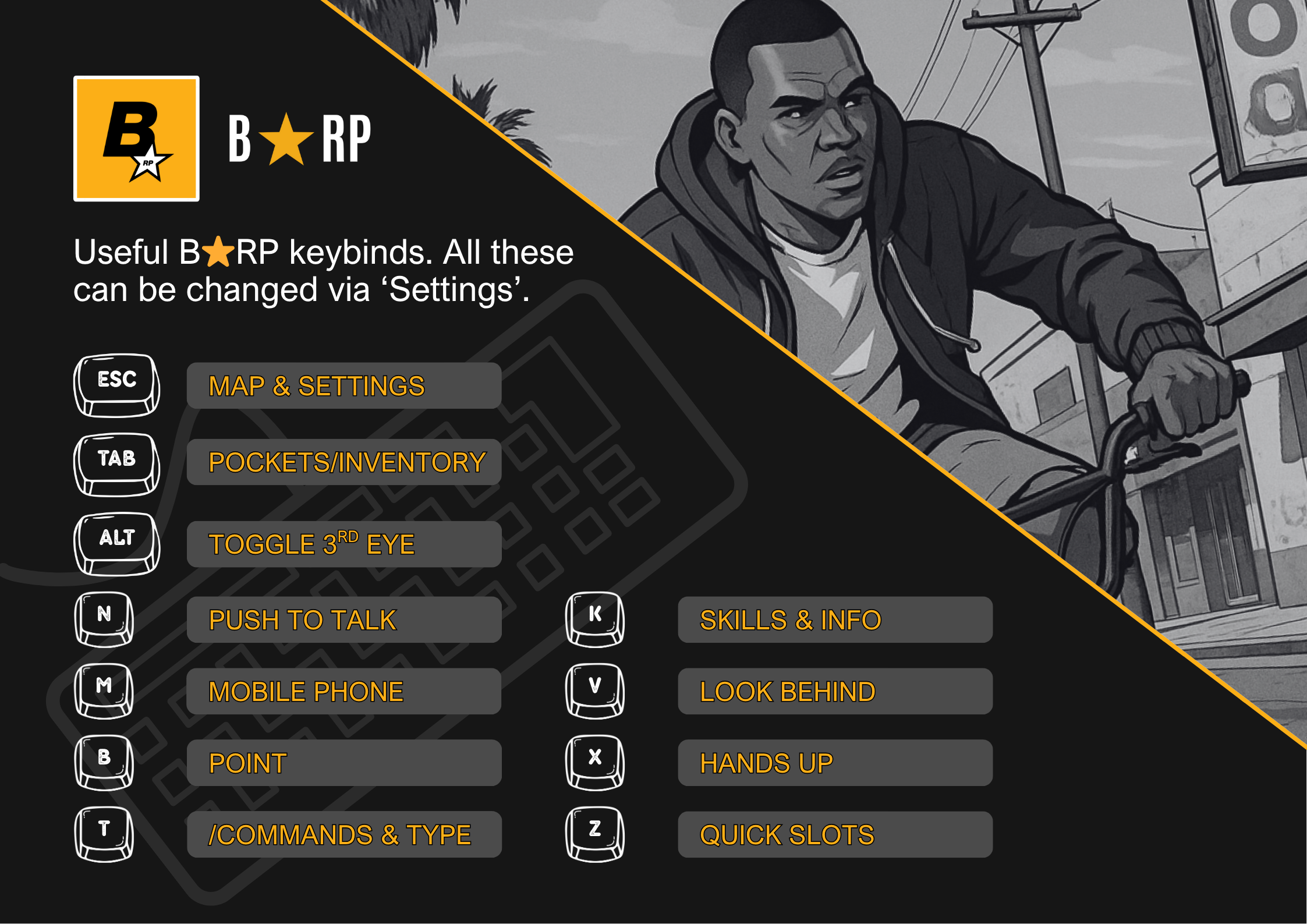
¶ 2. Adding Keybinds
In addition to the necessary keybinds that allow us to move around and interact with the GTA environment, personal keybinds can be added to enhance RP, or play animations/use props without the need to type the same thing, or remember the emotes constantly. Say you're a cop. You like to enhance your roleplay by standing with your hands on your hips and looking disapproving during traffic stops. Alternatively, you want to appear diligent and have your notebook out when talking to people. To save time, you can bind the e-notebook emote to a single key, then tap the keybind each time you want to play that emote.
Keybinds are done through the F8 menu. When you press the F8 key, you should see a text box at the bottom of the drop-down where you can type. The Keybind formula is as follows:
Bind keyboard “key” “what you want to bind”
For example, for the above LEO suggestion, you would type the following in the F8 text box:
Bind keyboard “7” “e notebook” - Plays the notebook prop emote when you press ‘7’ on your keyboard.
or
Bind keyboard ‘7’ to ‘cop3’ - Plays the hands-on-hips cop emote when you press ‘7’ on your keyboard.
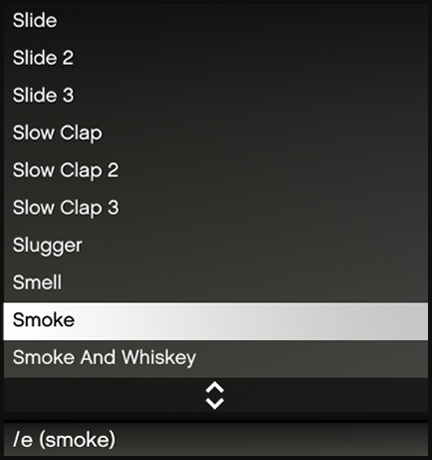 |
To find the name of the emote you want to add to the keybind, open the emote menu by pressing the ‘F4’ key. The emote for smoke would be /e smoke. The name in brackets is what you add to the keybind command. e wave e smoke e clipoard |
Me and do can also be used for text-based emotes; each has its meaning: /me - This would be used to express thoughts, facial animations, or other emotions that cannot be expressed verbally or with provided emotes. NOTE: Using /me negative ‘thought’ emoting is not allowed. Insulting someone through thoughts they cannot read or react to is considered toxic behavior./do - This would be used for actions that have no associated animation. NOTE: Using /do to circumvent game mechanics is powergaming and not allowed. For example, /do wipes away fingerprints would not be acceptable.
¶ 3. Multiple Actions
It is possible to add multiple keybinds to the same key. For example, the ‘M' key (unless you rebound it) opens your phone. To add a text /do emote when you pull out your phone, type the following:
Bind keyboard “m” “do Opens my phone”
These multi-keybinds are particularly useful for Emergency Services and LEO.
Bind keyboard numpad3 “do carefully wraps the injury with a bandage.”
Bind keyboard numpad3 “e bandage1”
This would play the emote of wrapping a bandage and display the text “carefully wraps the injury with a bandage” whenever the ‘Numpad 3’ key is pressed.
NOTE: Each line has to be added to F8 separately if you're adding multiple keybinds to the same key.
¶ 4. Walk Styles & Changing Walks
The way your character walks can reveal a great deal about them and their personality, background, and more. There are many walks available to choose from:
| WALK STYLES - alien, armored, arrogant, brave, brave2, butch, butch2, butch3, buzzed, casey, casual, casual2, casual3, casual4, casual5, casual6, chichi, chubbyfemale, chubbymale, confident, cop, cop2, cop3, coward, dave, defaultfemale, defaultmale, depressed, depressed2, depressed3, depressed4, dreyfuss, drunk, drunk2, drunk3, drunk4, drunk5, drunk6, fat, fat2, fat3, fat4, femme, femme2, fire, fire2, fire3, floyd, franklin, gangster, gangsterb, gangsterc, gangsterd, gangstere, gangsterf, gangsterg, gangsterh, gangsteri, gangsterj, gangsterk, gangsterl, gangsterm, gangstern, generic, generic2, grooving, grooving2, guard, handcuffs, heels, heels2, hiking, hiking2, hipster, hobo, hobo2, injured2, intimidation, intimidation2, intimidation3, janitor, janitor2, jimmy, jog, lamar, lamar2, lester, lester2, maneater, michael, money, muscle, nervous, paramedic, patricia, posh, posh2, quick, run, runner, sad, sad2, sad3, sad4, sad5, sassy, sassy2, scared, sexy, shady, slow, stripper, swagger, swagger2, toolbelt, toolbelt2, tough, tough2, tracey, trash, trash2, trevor, veryslow, wide. |
There are three commands associated with walks. /walks will pull up the above list of available walk styles. /walk [style] will temporarily change your walk (it will reset if you relog, enter a building, etc.) and /walkset [style] (for example, /setwalk sassy), which will permanently set that character's walk. If you change your walk and hate it, use /walkset to override your bad choices.
¶ 5. Using The Radio
|
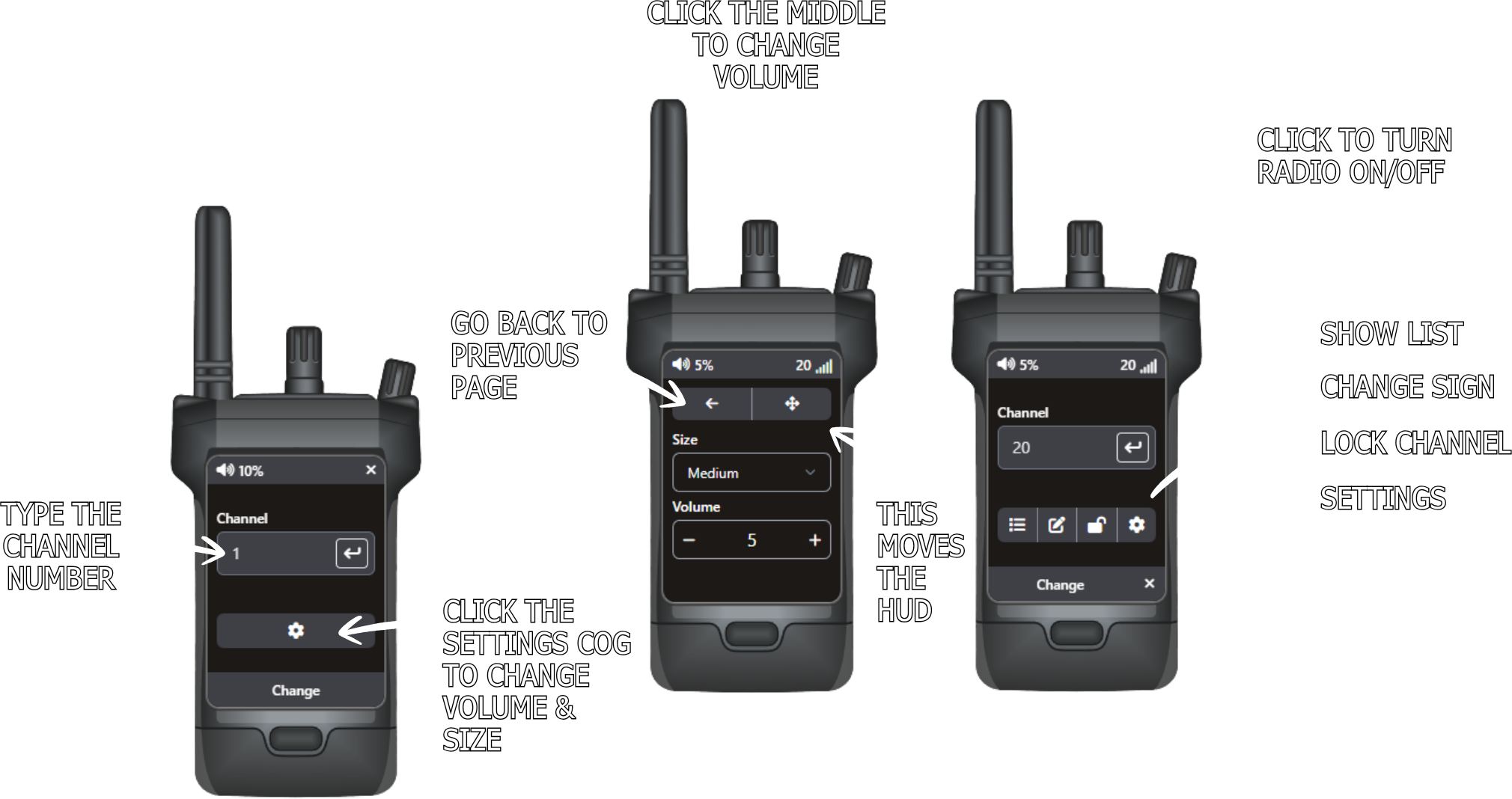
OPENING YOUR RADIO - If your radio is in one of your 1-5 hotkeys, press that key to open your radio. If it isn't, open your inventory and right-click it, select ‘use’ from the drop-down, or drag it to the ‘USE’ option at the bottom of your inventory. CONNECTING & USING YOUR RADIO - The diagram to the right shows an open radio and all the buttons, where to type the channel, etc. Most options have a hover tooltip that appears when you hover your mouse cursor over them. |
 |
¶ 6. Helpful Commands
Various commands can be used via the text box while in the city (press your ‘T’ key to open the text box). This is a list of most of the current useful ones (not mentioned elsewhere in this guide).
/311 [Message] - Sends a non-emergency message to LEO and emergency services.
/911 [Message] - Sends the emergency message (you type) to LEO and emergency services.
/911a [Message] - Sends the anonymous message (you type) to LEO and emergency services.
/escort - Escort a player; the player needs to be unconscious, fully downed, cuffed, or zip-tied.
/e [Emote Name] - Plays the named emote.
/e c - Cancels a currently playing emote.
/emotemenu - Opens the Emote Menu (F4 also opens this menu).
/seat 1-4/8 - Shuffle seats in a vehicle.
/Id - Displays your current ID (People often refer to this as your 'fave number', 'PayPal', etc., in roleplay).
/CID - Displays your current character's CID.
/bank - Shows your bank balance.
/cash - Shows how much cash you have in your pockets.
¶ NEW TO RP HELP
¶ 1. IC Vs OOC
Understanding the difference between in-character (IC) and out-of-character (OOC) is fundamental to role-playing. When we talk about staying IC, we mean fully embodying your character: acting, speaking, and thinking as they would based on their personality and knowledge within the roleplay world. When we talk about being out of character, we're referring to you communicating as yourself in the roleplay environment. The use of OOC while in the city is covered in the B⭐Community Rules.
| 1.1.3 | You must remain in character at all times. |
| 1.1.4 | You cannot break character to explain a rule (rulesplaining). This includes the use of synonyms such as “bible”, “gods”, “government”, “prayers”, “rastapasta”, “rollypolly”, etc. |
¶ 2. Common RP Terms
When you’re roleplaying, things outside the city don't exist to your character; they live, eat, breathe, sleep, etc. in San Andreas. You don't have a ‘spiritual’ housemate. You may have a housemate residing in their apartment. You don't need terms to describe role-play, because there is no role-play; you're just living your life as your character.
That said, the real ‘us’ lives in the real world, where phones ring, people turn up unexpectedly, our internet dies, things break, and other role-playing events occur. There will be times when we need to inform our fellow roleplayers that something has arisen, or that something is currently malfunctioning, and we require a moment to explain the oddities of what just happened. This is where we have some standard roleplay terms that most people know and understand:
Flying In - When someone asks when you're flying in next, or something similar, they're asking when you'll be in the city next. Flying in usually refers to connecting to the server. This can also be used when you first load in, such as saying, “I just flew in,” or when people sometimes say, “I just woke up.”
City - The game server, people will say things like “Will you be in the city tomorrow?” They're asking if you'll be connecting to the server tomorrow.
Muscles - When someone tells you to flex a specific muscle, they are telling you to press a key on your keyboard. “Flex your X muscle.” This means press your ‘X’ key.
Tsunami - This refers to server restarts that occur twice daily at 6:00 PM EST and 6:00 AM EST.
Locals - NPC's
Taking A Nap/Popping My Head - These phrases are used to indicate that you are going to log out and then log back in. You could also say, “One moment, I need to run back to my apartment, I think I left the iron on,” and move out of sight before logging out.
Eyes Messed Up - “I lost focus for a moment,” or “I need to get my glasses checked”. These are ways of saying you couldn't see something. Players can experience ‘playdough’ textures or other visual issues that they need to explain to other players (the command /fixeyes helps resolve playdough textures and missing MLO interiors).
In My Head - The person is going AFK for a moment.
Look @ The Clouds - Check OOC for an announcement, or staff just sent an in-city announcement.
Wizard/Crazy Person - A Hacker, when everything goes insane, people will say there is a wizard in the city.
Headache - People say this when they are experiencing lag or other issues that affect their game performance.
Spider - People say this when your character is bugged, you might be flickering, or stuck playing an emote. They are telling you to jump; jumping usually fixes the problem.
Contacts - This is used when the person is trying to relay that they use a graphics mod and might be seeing things slightly differently.
Email - Sending an email or checking your email would usually mean checking Discord.
Cough Drops & Voiceboxes - References to cough drops and voice boxes are an IC way of telling someone their microphone is messed up or not working.
Brain - Your PC - This is an odd one, cos it can start to sound very strange in RP. “I didn't fly in, I had to get a new brain.” Did you? A new brain? Try to avoid using it if possible; it's included so you know what people are talking about and don't think they're going crazy.
The terms you use to explain OOC issues should be as city-friendly as possible and be used as rarely as possible.
¶ 3. General RP Tips
Introduce Yourself To Everyone - B⭐ is a very friendly place; we welcome new residents and those new to roleplay. Introduce yourself, engage in conversation, ask questions, and take the time to get to know the people you meet. If you get on, get their phone number and plan additional activities.
Be Someone New - Create a character that is unlike the real you. If you're shy, try being more outgoing. Initially, you will have to think about how that character would respond in certain situations, as it's not you responding; it's them. The more you roleplay the character, the easier it will become and the easier it will be to separate IC you from OOC you.
Don't Be Afraid To Ask - This applies to both IC and OOC. Generally speaking, people in the city are happy to answer basic questions. Yes, they'll gatekeep some information. The information needed for some types of criminal activity can take months to obtain or incur costs. If you're asking the best place to fish, or where to sell your scavenged items, they're much more likely to give you a helpful response. OOC, the Staff Team is always willing to help. 🎫⋮create⋆ticket and select ‘Support Ticket’ from the drop-down list, we'll happily answer any questions you may have unless you need to find that out in roleplay ;)
¶ CONNECTION ISSUES & COMMON ISSUES
¶ 1. Pure Mode
If you've played other FiveM servers, you may have mods installed that conflict with Pure Mode. This will prevent you from accessing the server. We use this mode to avoid cheating. Most client-side modifications are blocked, but some graphics and audio mods are allowed as long as they don't provide an advantage. To connect to B⭐, you'll need to remove any conflicting mods from your game directory. If this doesn't work, consider a clean installation of GTA.
¶ 2. Direct Connect
If you're having trouble connecting to the server, press the F8 key and type 'connect fivem.bstarrp.com' to direct connect to the B⭐ server.
¶ 3. Clearing Your Cache
Clearing your cache can help resolve many issues, especially if you visit multiple cities and both servers use custom content (such as cars, maps, or textures) that share the same names or file paths. Leftover or overlapping files can cause texture bugs or crashes when switching between servers.
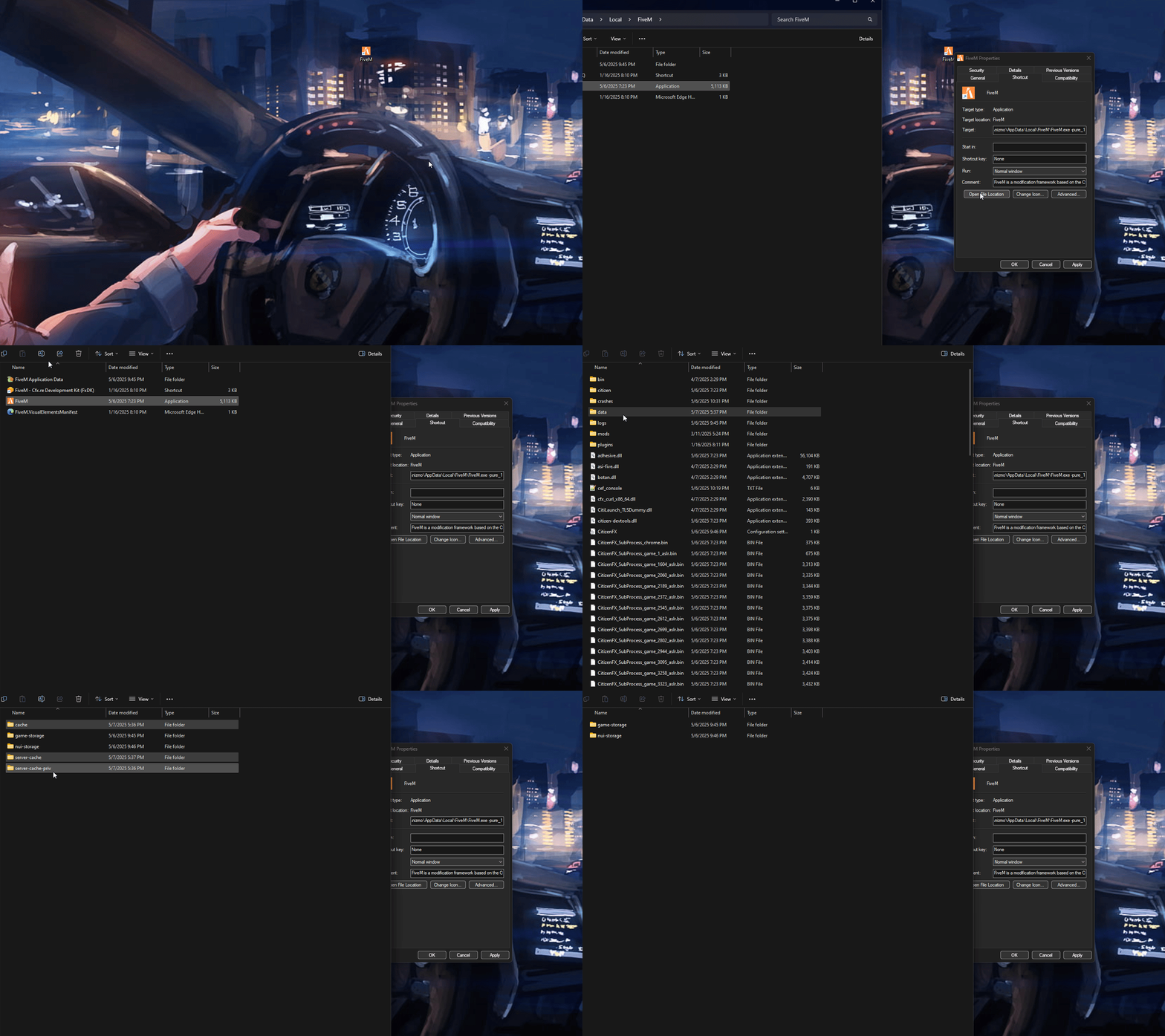
To clear your cache, right-click your FiveM shortcut and select 'Open File Location.' Open the 'FiveM Application Data' folder, then open the 'Data' folder. Delete all files that contain the string 'cache'; there should be three: 'cache', 'server-cache', and 'server-cache-priv'. Don't delete the 'game-storage' or 'nui-storage' folders.
After you clear your cache, FiveM must re-download files, such as custom textures, maps, vehicles, and scripts. This may initially cause lag or slower load times until everything is cached again.
¶ 4. Problems Hearing/Speaking
This is a known FiveM bug with voice chat; it happens occasionally, usually when you first load in. There is a quick fix that usually works. Go into your settings, toggle 'Voice Chat Enabled' Off, then turn it back on. If it doesn't fix immediately, try walking out of range of the people you were trying to communicate with, then walk back. Your voice communication/sound should reconnect properly.
¶ 5. Missing Interiors & ‘Playdough’ Textures
If you're missing MLO interiors or see the city as a fuzzy mess, then try using the /fixeyes command. Give it a couple of tries if it doesn't work the first time, but this should help you refocus and find the missing building pieces. Alternatively, in ‘Settings’ under ‘Advanced Graphics, try moving your ’Extending Distance Scaling' to 0, then under ‘Graphics’ check your ‘Extended Texture Budget’ is between 50-75%. This should resolve many of the playdough issues.
¶ 6. Help, I Can't Move
If you suddenly find yourself unable to move, check your inventory. B⭐has an inventory weight limit that increases with strength skill gain. Suddenly being unable to move is usually caused by exceeding this weight limit. Drop some stuff, and you should be able to move enough to empty your inventory and pick the items back up to move them.
¶ 7. More Useful Information
The 💻⋮bugs⋆fixes⋆support contains a lot of helpful information if you're experiencing connection issues. Alternatively, head to 🎫⋮create⋆ticket and select ‘Support Ticket’ from the drop-down list, and we'll try to assist.